
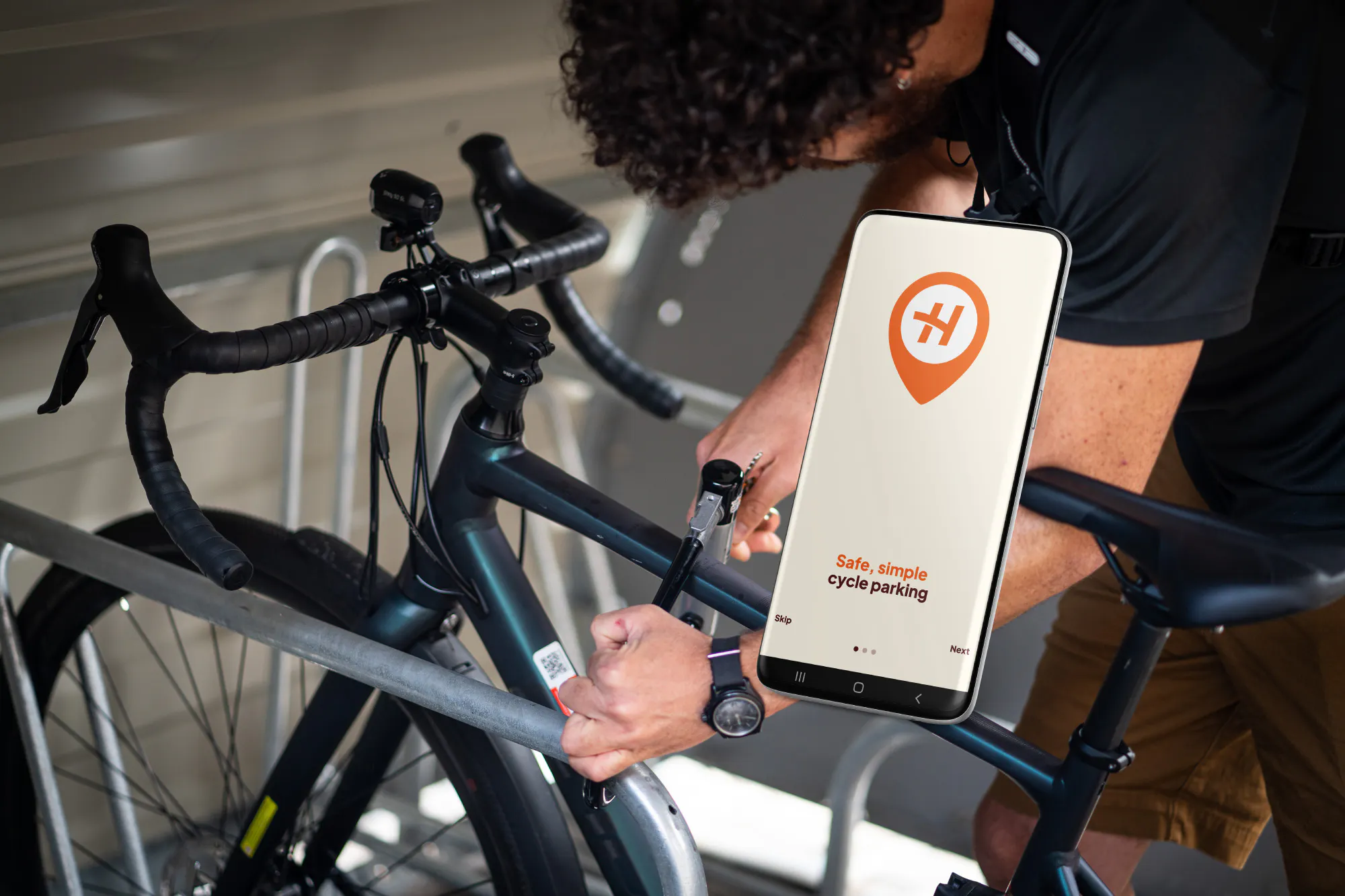
In Manchester, Hooplr Home is now available with electronic access via the Hooplr smartphone app. Get fast access to your new cycle parking space with no keys to wait for, and no key deposit to pay.
If you have joined a waitlist for a space in one of the following Bikehangars, and you’ve received an email to tell you a space has become available, follow this guide to setup up your subscription. You may have joined the waitlist on our old platform, Cyclehoop.rentals. Don’t worry, you’re in the right place, Hooplr Home is the new name for our residential cycle parking service.
if you haven’t received an offer email yet, we will email you when a space becomes available. Add home@hooplr.com to your contacts or safe senders list to make sure the email doesn’t get lost in your spam folder.
When you get the offer email, follow these steps:
1.1 Download the Hooplr app
2. Create an account
2.1 Open the Hooplr app. Select the ‘Profile’ tab at the bottom of the screen.
2.2 The ‘Register’ pop-up will appear. Press the ‘Register’ button.
2.3 In the ‘Create your Hooplr user account screen’, Enter your email, passwords and mobile number. Use the same email address that you used to join the waiting list.
2.4 Tick the terms and conditions and marketing consent box, then press the ‘Sign up’ button.
3. Add a payment card
3.1 In the ‘Profile’ tab, scroll down and select ‘Payment card’
3.2 In the payment card screen, press ‘Add payment card’, a pop-up will appear advising you that you will be redirected to our payment gateway. Press ‘Continue’.
3.3 In the payment gateway screen, enter your card number, expiry date and CVC number.
3.4 Click ‘accept’. Your card will be charged £0.00; you may need to authorise the payment with your bank/card issuer at this stage.
Please note, if you do not authorise the transaction, you will be unable to start your subscription.
3.5 The ‘authorised’ screen will appear, click continue.
3.6 Close the Hooplr app and reply to the offer email informing us that you have completed steps 1, 2 and 3.
Upon receipt of your email, we will allocate your account to the Bikehangar. We will then contact you to confirm your access has been granted. Once this has been done, please complete the following steps.
4. Starting your subscription
4.1 Open the Hooplr app.
4.2 On the ‘spaces’ screen you should be able to see the pin for the Bikehangar. If not, ensure your device location services are switched on and enabled. Click on the pin.
4.3 Click ‘Start booking’. You will see the price per month.
4.4 Click ‘Book’. The next screen will provide details of the subscription and the opportunity to enter a discount code, should you have one.
4.5 Click ‘Continue’.
4.6 Your payment card should appear as an option to select for your monthly payment. If you haven’t already added a payment card to your account, select ‘New payment card’. Follow the instructions to add your card. Then continue to next step. If you have already added your card, click ‘Continue’.
4.7 You will receive confirmation of your allocated space.
4.8 Close the app.
5. Opening the Bikehangar
5.1 Open the app. Ensure that Bluetooth and location services are switched on and enabled on your device.
5.2 In your ‘Active subscription’ in the Spaces page, Click 'Unlock'.
5.3 After clicking 'Unlock', wait for the ‘Door unlocked’ pop-up (approx. 3-4 seconds) until the latch is ready to be turned. Push down on the grey handle and turn the latch clockwise to the unlocked position.
5.4 Open the Bikehangar door by pulling upwards on the grey handle.
5.5 Park your bike in your designated space, as shown on the app, and lock it to the locking bar.
6. Locking the Bikehangar
6.1 Pull the door closed using the grey handle.
6.2 Press down on the grey handle and turn the latch anti-clockwise into the locked position.
6.3 Pull up on the grey handle to check the Bikehangar is locked.
7. Cancelling your Subscription
7.1 When you no longer need your cycle parking space, please contact us at home@hooplr.com